
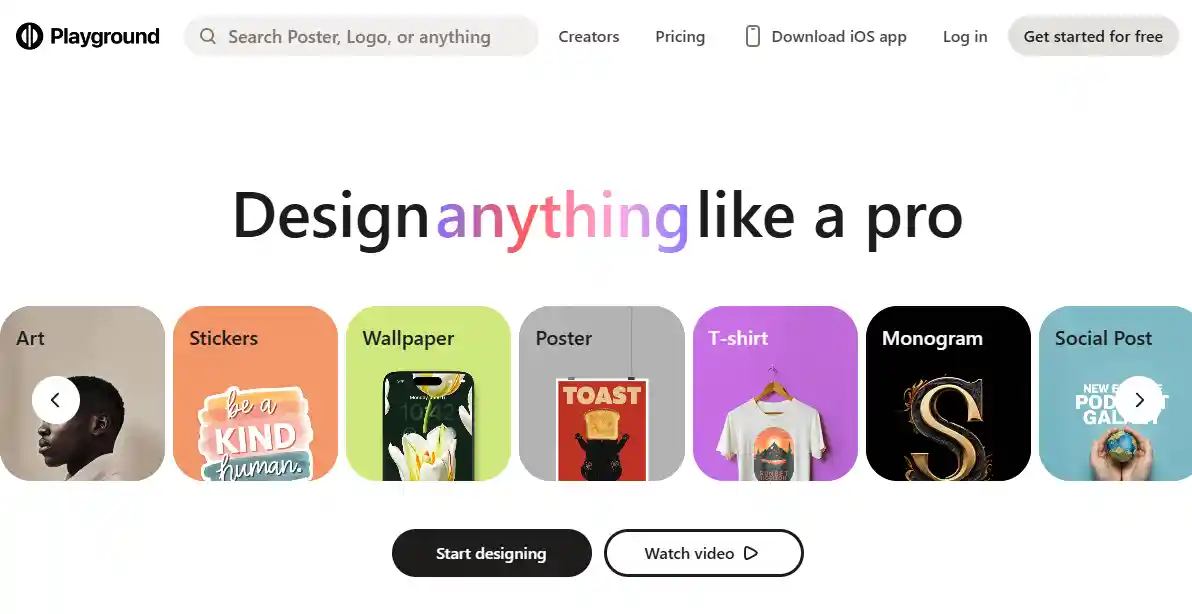
You’re not the only one who has opened an AI image generator and been confused by sliders, models, and strange “prompt weights.” Playground AI looks simple at first, but it has a lot of power under the hood to keep beginners, designers, and advanced creators happy. You just have to know what to touch and what to ignore.
This guide will explain what Playground AI is, how its free and Pro plans work, and how to use the image, editing, and upscaling tools without wasting hours. You’ll get a clear, step-by-step Playground AI tutorial for beginners as well as useful tips for more experienced users.
What Playground AI Is and Why People Like It
First, let’s make sure we’re on the same page: what exactly do you agree to when you use the Playground AI image generator?
You can use Playground AI to make images from text, turn photos into AI art, and edit images (erase, replace, expand, enhance) in your browser or through mobile apps. It is easy to use for beginners, but it also has advanced features like prompt weighting, models, and inpainting.
Alos Read: Grok AI Stock: What You Need to Know About Putting Money into Elon Musk’s AI Bet
AI Regulation New Today: What’s Actually Changing?
My Real 2026 Experience with Grok AI Spicy Mode
Important features that matter to you
- Text-to-image maker for photos, art, anime, 3D, cyberpunk, and more
- Image-to-image: upload a picture and change the style without changing the structure
- Erase and Replace (inpainting): take things out of a scene or switch things around
- Image enhancer/upscaler: make low-resolution images sharper and bigger for better quality
- Background editor and remover for design work
- There are both browser-based and mobile app options for iOS. The app comes with built-in erase and replace and enhancer features
People like it because it has a clean interface that is easy for beginners to use and enough technical settings that designers and marketers don’t feel stuck.
A Quick Tip: If you’ve tried other tools that are based in Discord (like Midjourney) and didn’t like them, Playground AI feels more like a regular design web app—just click, drag, type a prompt, and you’re done.
Playground AI Free vs Pro: What You Get for Your Money
You might be asking yourself, “Is Playground AI really free?” Is Pro worth it, or is it just another way to get people to sign up? This is the easy version.
Pricing and plans for Playground AI
There are free and paid plans with more images, better quality, and faster speeds. The numbers in different reviews and snapshots are a little different (because plans change), but the pattern is the same.
The usual structure in 2025
| Plan | Cost | Limits | Features | Commercial Use |
| Plan without cost | $0 a month | Usually 10 to 50 images every 3 hours, or up to 1,000 images every day | Access to web, basic image creation and editing, some limits on resolution, long wait times during busy times | Usually okay, but always check the current ToS |
| Plans for Pro, Pro Design, Pro+, and Turbo | Prices are usually between $12 and $15 a month for Pro and between $30 and $36 a month for Turbo/Pro+. | More images per day (hundreds to thousands). | More advanced tools, faster generation, unlimited or higher upscaling, and often priority support. | Private image generation so that your outputs don’t show up in public. |

A quick look at Free vs. Pro
| Use case | Free plan (good for…) | Pro plan (worth it when…) |
| Experimenting in a casual way | Learning prompts and trying out different styles. | Too much unless you make something every day. |
| Content for social media | It’s fine to post a few times a day. | You post every day and care about being consistent and quick. |
| Business marketing and client work | Possible, but keep an eye on the limits and terms of service. | Safer for volume and quality expectations. |
| Branding materials like logos, posters, and more | Good for drafts. | Better for final exports and higher resolution. |
Mistake that happens a lot
A lot of people switch to Pro before they even know the basics of prompts. Use the free plan to its fullest, and then upgrade when you reach your limits more than once in a while.
A Beginner’s Guide to Using the Playground AI Image Generator
Let’s get into the “how to use Playground AI” part now. This is the main way to work with text and images.
Step 1: Create an account and log in
- You can sign up for free on Playground’s website using your email address or a single sign-on. You can start using web generation right away by signing up for free.
- Log in and choose the main “image generator,” “Board,” or “Canvas” mode based on what you see on the screen.
Step 2: Choose a model and a style
Most interfaces have a dropdown menu for models (like different Stable Diffusion or proprietary models) and style presets (like realistic, anime, 3D, cyberpunk, and so on).
- Choose a realistic or photographic model if you want realistic portraits or photos.
- If you want anime, cartoons, or stylized avatars, pick a model that is anime or cartoon-oriented.
- Use an engine that is more stylized or focused on illustrations for posters, logos, and 3D/cyberpunk art.
A Quick Note: If the output keeps looking “too anime” or “too painted,” you probably have the wrong model or preset. Sometimes, switching models fixes quality faster than changing 20 prompt words.
Step 3: Write a good prompt
A good Playground AI prompt usually has:
- Subject: “A realistic picture of a 30-year-old woman”
- Lighting/Camera: “studio lighting, soft focus, 85mm lens, Canon DSLR” for style
- Details: “a slight smile, a neutral background, and skin that looks real”
- Quality: “high-resolution, ultra-detailed, 4k, cinematic” are some hints for quality
An example of a prompt for real photos:
“Ultra-realistic picture of a 35-year-old Black man in a navy hoodie, with soft window light, a shallow depth of field, an 85mm lens, detailed skin texture, a subtle smile, a neutral grey background, and a high-resolution, cinematic look.”
Here are some ideas for posters and logos:
“Minimalist logo for a tech blog called TechTip. It has a simple icon, a flat design, blue and white colors, clean sans serif lettering, a centered layout, and a vector style.”
Step 4: Don’t think too hard about the prompt weights
A word prompt weight slider or something like it is often included in Playground AI so you can make some parts of your prompt more or less important.
- Keep the global scale/strength moderate (for example, 5 to 9).
- Instead of cranking sliders, emphasize textually (e.g., repeat “blue hoodie”).
Pro Advice
Advanced users can move the weight sliders up to try out different styles, but if you’re new, extreme values can make images look strange or distorted.
Step 5: Make, look over, and then improve
Click “Generate” and let the app make a batch. If you’re free, expect:
- Sometimes, things take longer to generate at busy times.
- There are some limits on how many pictures you can run at once.
Then:
- Keep one or two pictures that you like.
- Change the prompt by adding or removing style keywords.
- Make a few more changes to the original.
- Think of this as an iteration, not a lottery.
Playground AI for Editing Photos: Delete, Change, and Add
This is where Playground AI goes from being a “toy” to being a real photo editor that creators and marketers can use.
How to use Erase & Replace (inpainting)
Steps:
- Choose an existing image or upload one.
- Change to the Erase & Replace tool or inpainting tool.
- Brush over the area you want to change.
- Type a short prompt telling what should be there.
- Make different versions and compare them.
Advice
- Make prompts easy for touch-ups. For example, “clean wooden floor” works better than long paragraphs.
- If faces or hands look wrong, make the mask smaller and adjust “image strength.”
Mistake That Happens a Lot
Covering too much space at once—work in smaller areas for more control.
Removing backgrounds and putting them together
Useful workflows:
- For e-commerce or social media: clean product backgrounds.
- For profile pictures: cut outs with soft gradients.
- For posters: use cutouts plus text in design tools.
Playground AI: Improving and Upscaling Images
When to use the image enhancer
Use the enhancer when:
- The photo is blurry or low-res.
- You’re resizing for posters or wallpapers.
- AI results look soft around edges.
Basic steps
- Upload your picture or pick one from the results.
- Select Enhance or Upscale.
- Choose resolution or 2x/4x upscaling.
- Compare and export the sharper version.
Pro Insight
2x upscaling and minimal sharpening usually work best for social media.
Use Cases in the Real World: From Logos to Posts on Social Media
Branding ideas, logos, and posters
Use it to:
- Generate logo ideas based on your brand and colors.
- Create mock-up posters.
- Make backgrounds for flyers, then add text in Figma or Canva.
A Quick Tip: Use words like “vector style,” “flat design,” or “minimalist icon.”
Memes, avatars, and posts on social media
- Create anime or cartoon avatars.
- Make meme templates.
- Combine AI backgrounds and product shots.
Content creators and marketers for businesses
Playground can power your content machine:
- Blog post visuals.
- YouTube thumbnails.
- Ad creative variations.
- Marketers doing volume work prefer higher-tier plans.
Playground AI vs. Midjourney, DALL·E, Canva, and Firefly
Tool comparison
| Tool | Best for | Pros | Not good |
| Playground AI | Image generation and editing on the web for everyone | A user-friendly interface, powerful editing tools, and a generous free tier. | Limits on free and slowdowns during peak hours. |
| Midjourney | High-end art on Discord | Amazing picture quality and consistent art style. | Lives in Discord, which is less intuitive. |
| DALL·E (OpenAI) | Images that are clear and text that fits well | Follows directions well, works with OpenAI. | Editing tools limited, based on credits. |
| AI Generator for Canva | Social media and marketing graphics quickly | Built into Canva, great for casual design. | Less control over advanced generation. |
| Firefly from Adobe | Designers using Adobe | Integrates with Photoshop, great for branded content. | Best only if already paying for Adobe. |
What This Means for You
Playground AI is ideal if you prefer web-based tools with editing features over Discord-based generation.
Fixing Playground AI When It Doesn’t Work or Looks Strange
Problems that happen a lot and how to fix them quickly
“Playground AI not working” or “can’t make pictures”
- Check if you reached your image limit.
- Try again during off-peak hours.
- Log out/in or clear cache.
Pictures that are blurry or don’t have a lot of detail
- Switch to a higher-quality model.
- Use enhancer/upscaler.
- Avoid extreme style prompts.
Strange faces or hands or things that don’t look right
- Use portrait-focused models.
- Use small masks for corrections.
- Simplify prompts.
Account limits, login, and password
- Reset password if needed.
- Check official pricing for plan limits on the Playground AI pricing page.
FAQ: Playground AI for New Users, Creators, and Businesses
Common questions
| Question | Answer |
| Is it free to use Playground AI? | Yes, Playground AI has a free plan that lets you make and edit images without paying, but you might have to wait during busy times. |
| What are the differences between Playground AI Free and Pro? | Free gives you basic text-to-image, editing, and a limited number of images per day. Pro and higher tiers add more images, faster speed, higher resolution, private generations, and more advanced features. |
| Can I use Playground AI pictures for business? | A lot of pricing overviews say that commercial use is okay even on free plans, but you should always check the official pricing/Terms page before using images for clients or paid campaigns. |
| Is Playground AI better for people who don’t want to pay? | Many people still like Midjourney better for pure, jaw-dropping art. However, Playground’s web UI, generous free features, and built-in editing tools make it easier for beginners and marketers who don’t want Discord. |
| Is there an app for Playground AI? | Yes, there is an iOS app called “Playground AI: Image Generator” that lets you improve images, erase and replace them, and use different artistic styles. Android availability depends on what is currently available. |
| How do I make images bigger with Playground AI? | Open your image, choose the enhancer/upscaler option, pick a higher resolution or scale factor, and then make the improved version available for download as a sharper, higher-res file. |
| How do I erase and replace in Playground AI? | Use the inpainting or “erase & replace” tool to brush over the area you don’t want, type a short prompt telling the program what should go there instead, and keep regenerating until the result matches your scene. |
In conclusion, how to make the most of Playground AI
Let’s not make this too hard. To get the most out of Playground AI, you should focus on the following:
- Before you pay for Pro, learn the basics of prompts.
- Choose the right model for your purpose.
- Treat Erase & Replace and enhancer as core tools.
- Use free to test, Pro for scaling.
- Combine Playground AI with Canva, Figma, or Photoshop.
You can learn a lot faster by making 3–5 images a day instead of reading a hundred guides.